MCP
[Hands-on] Building an MCP Server
(100% locally)

Avi Chawla
(100% locally)

TODAY'S ISSUE
Lately, there has been a lot of buzz around MCPs. We also covered it in a recent newsletter issue.
So today, let’s dive into the implementation.
Here's what we'll be doing:
Let's dive in!
But first, let's understand MCP using a translation analogy.
Imagine you only know English.
To get info from a person who only knows:
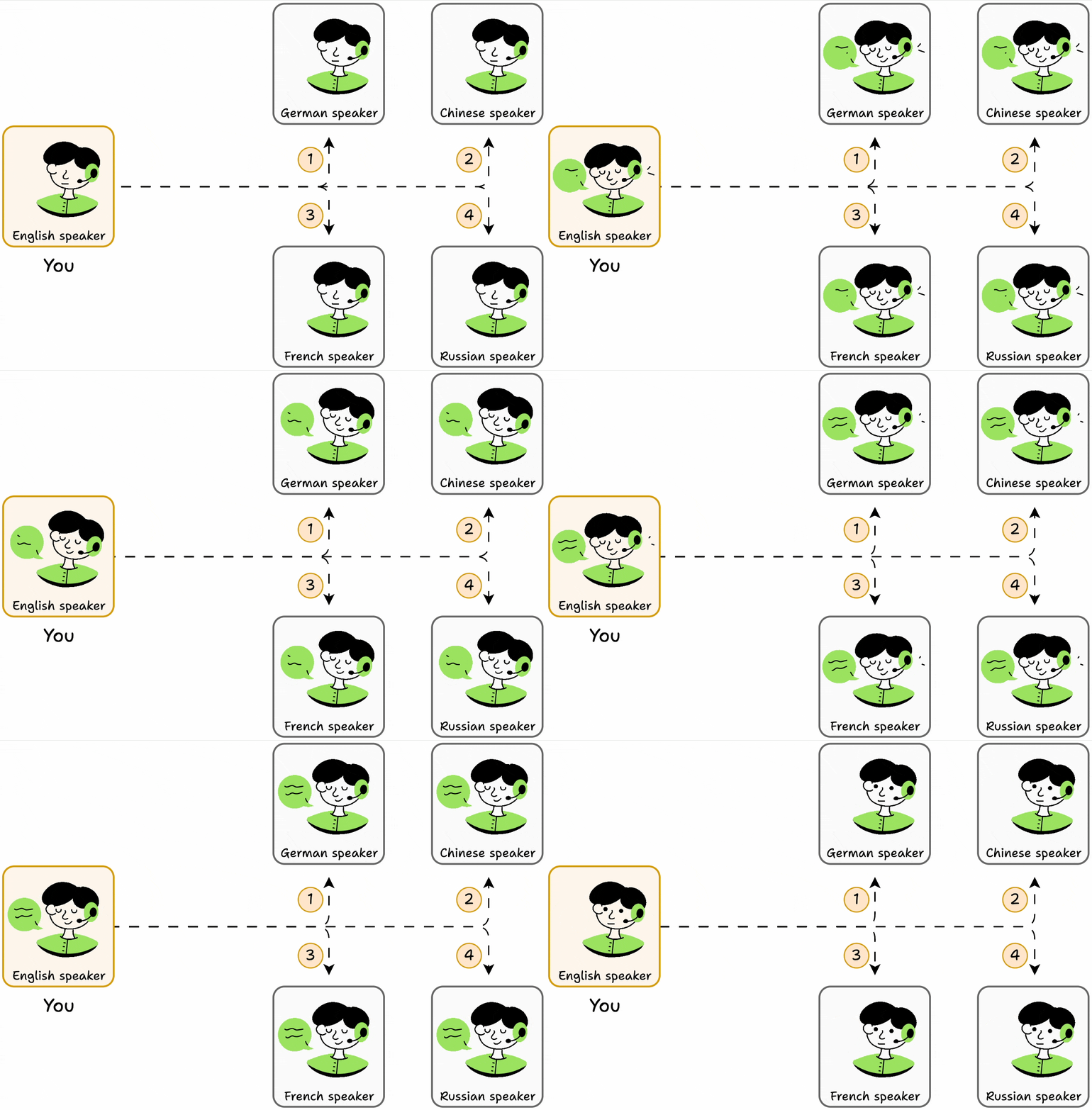
Learning even 5 languages will be a nightmare for you!
But what if you add a translator that understands all languages?
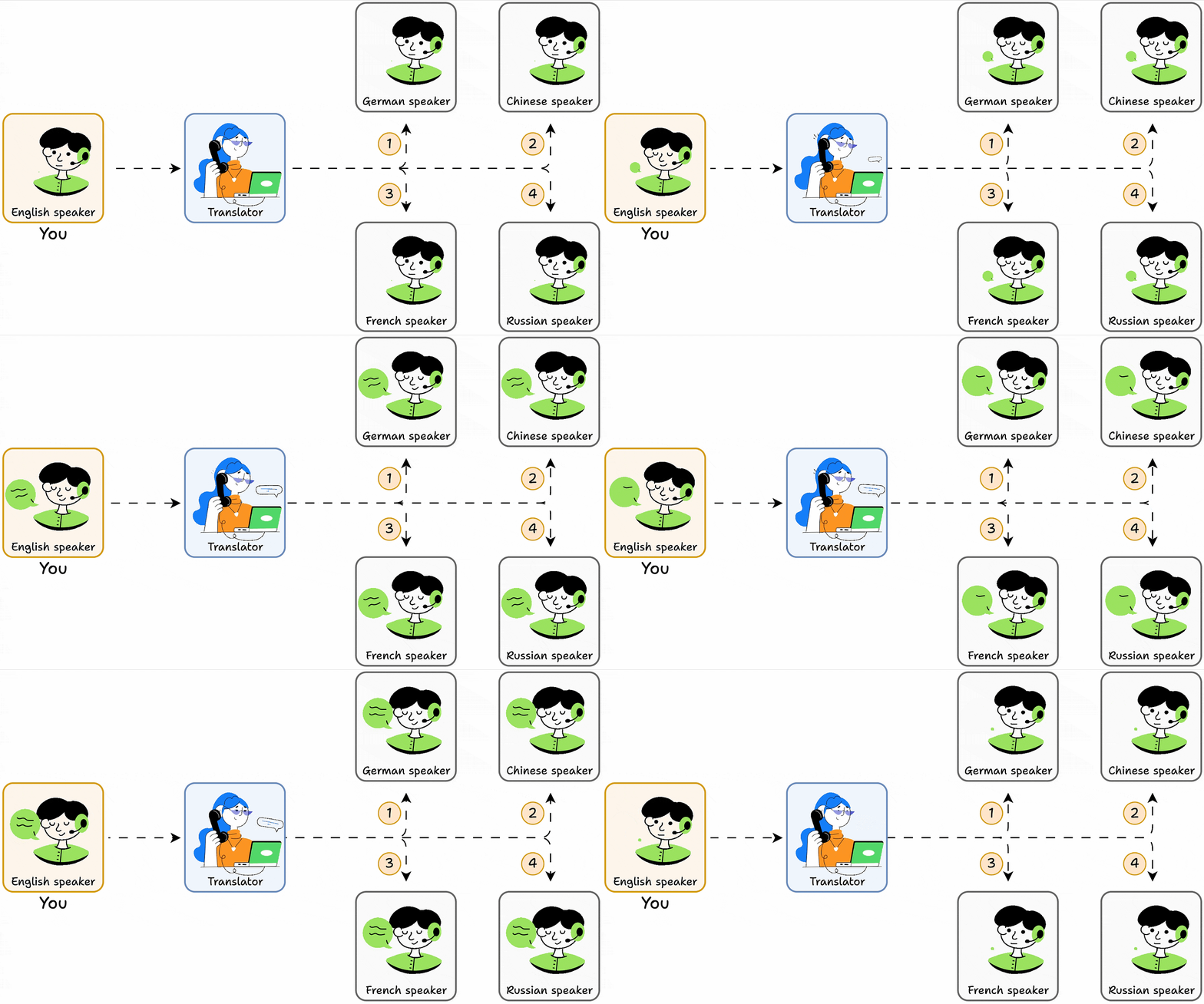
The translator is like an MCP!
It lets you (Agents) talk to other people (tools) through a single interface.
In the context of Agents, integrating a tool/API demands reading docs, writing code—similar to learning a language.
To simplify this, platforms now offer MCP servers. Devs can plug them, and Agents can use their tools/APIs instantly.
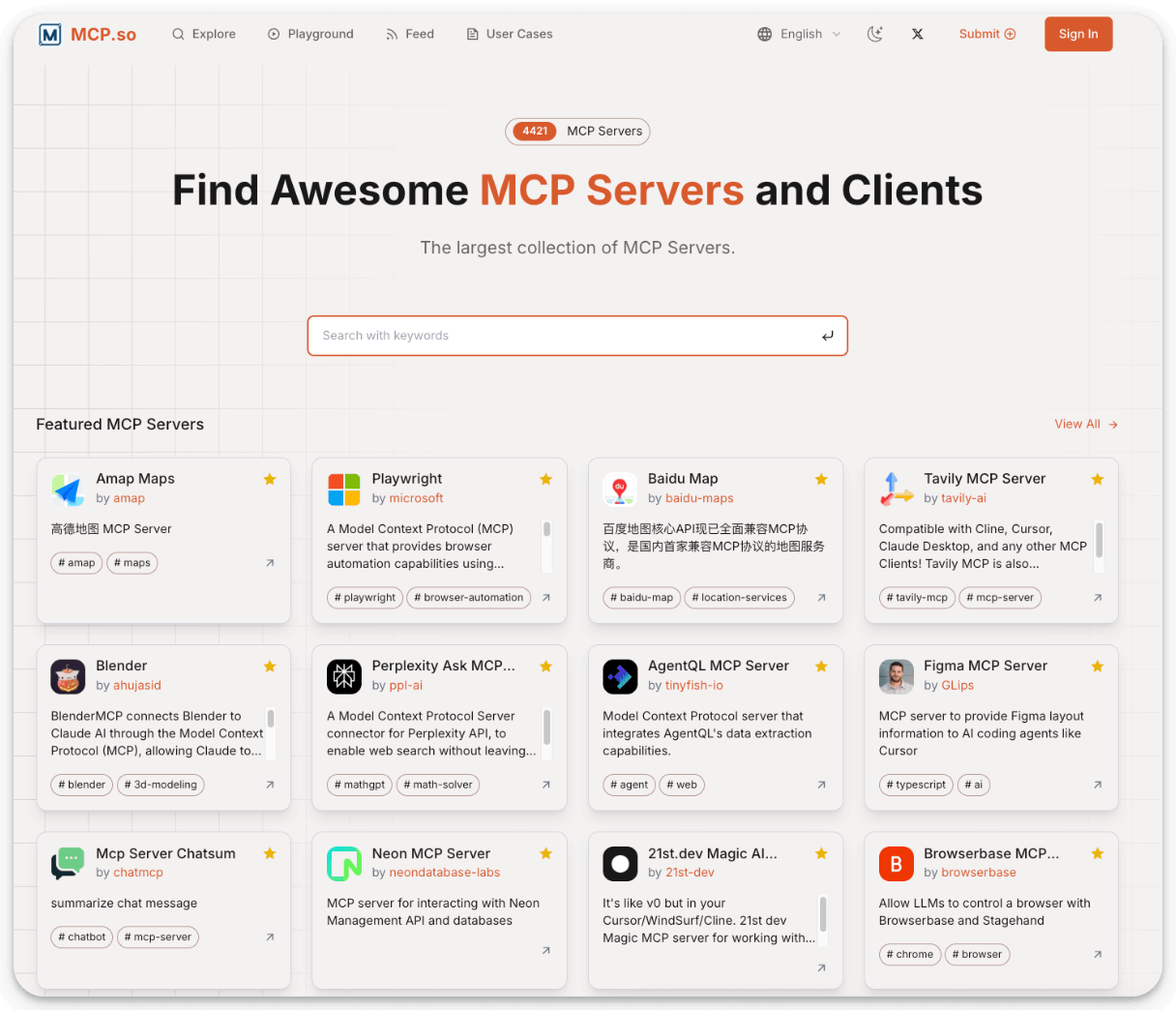
Here's how Agents use it:
Next, let’s build an MCP server!
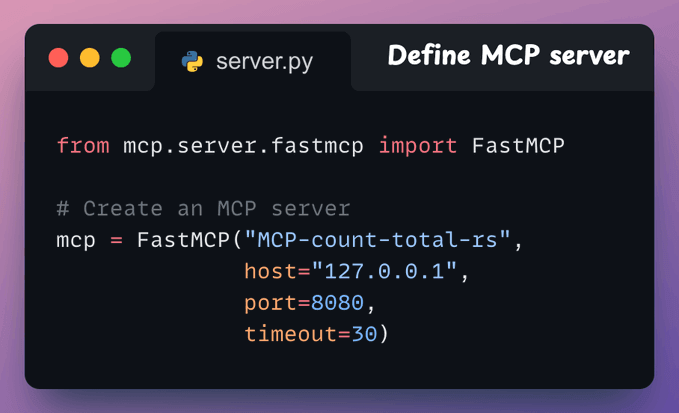
First, we define an MCP server with the host URL and port.
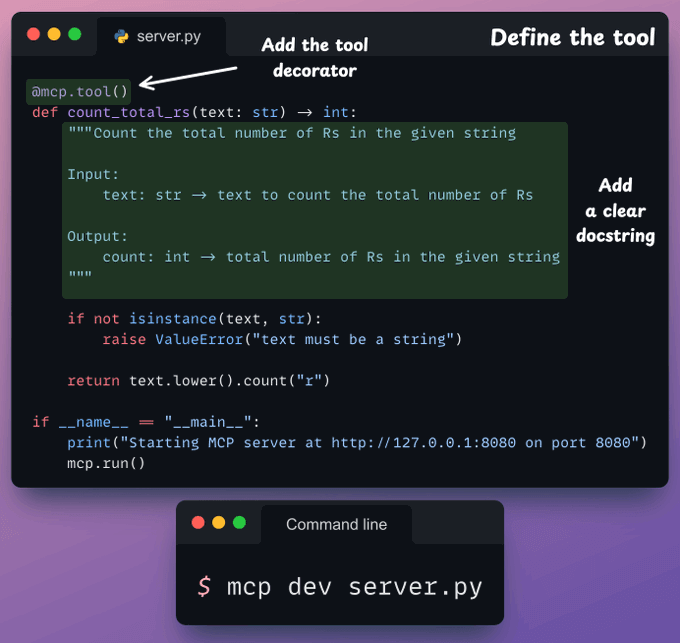
A tool exposed through an MCP server has two requirements:
Say through our MCP server, we want to expose a tool to count "r"s in a string.
Here’s the code for this tool👇
In this case, Cursor is an MCP host/client that will use the tools exposed by the MCP server.
To integrate the MCP server, go to Settings → MCP → Add new global MCP server.
In the JSON file, add what's shown below👇
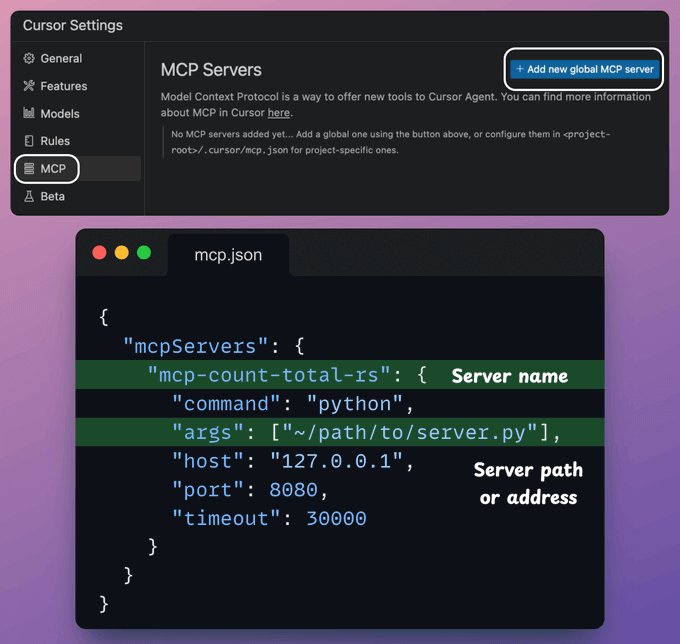
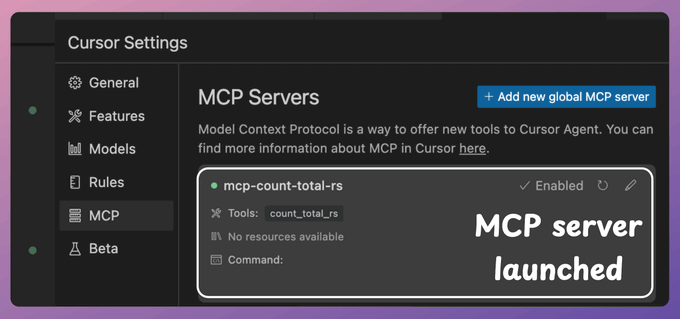
Done! Your local MCP server is live and connected to Cursor!
Check this👇
Next, let's interact with the MCP server.
As shown in the video below, when asked to count the number "r"s in strawberry:
Let's make this more practical and realistic by integrating Firecrawl's MCP server to utilize scraping tools.
To do this, go to Settings → MCP → Add new global MCP server.
In the JSON file, add what's shown below👇
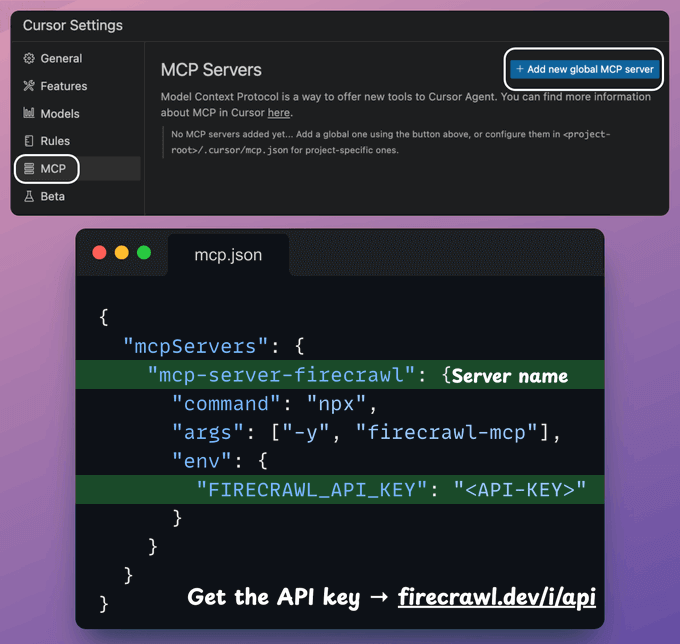
Once done, you will find all the tools exposed by Firecrawl's MCP server your Agents can use!
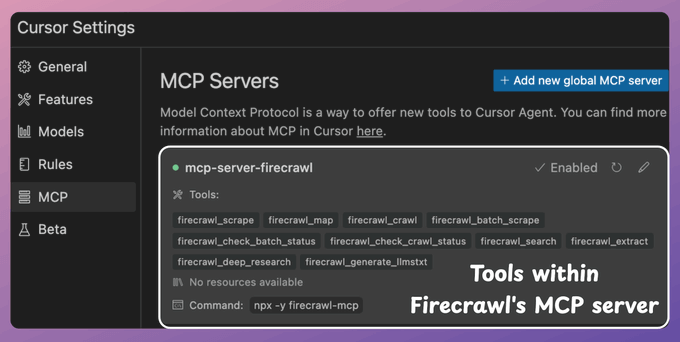
Notice that we didn't write a line of Python code to integrate Firecrawl's tools. Instead, we just integrated the MCP server.
Next, let's interact with this MCP server.
As shown in the video, when asked to list the imports of CrewAI tools listed in my blog:
That was simple, wasn’t it?
👉 Over to you: Do you think MCP is more powerful than traditional API setup?
Thanks for reading!